

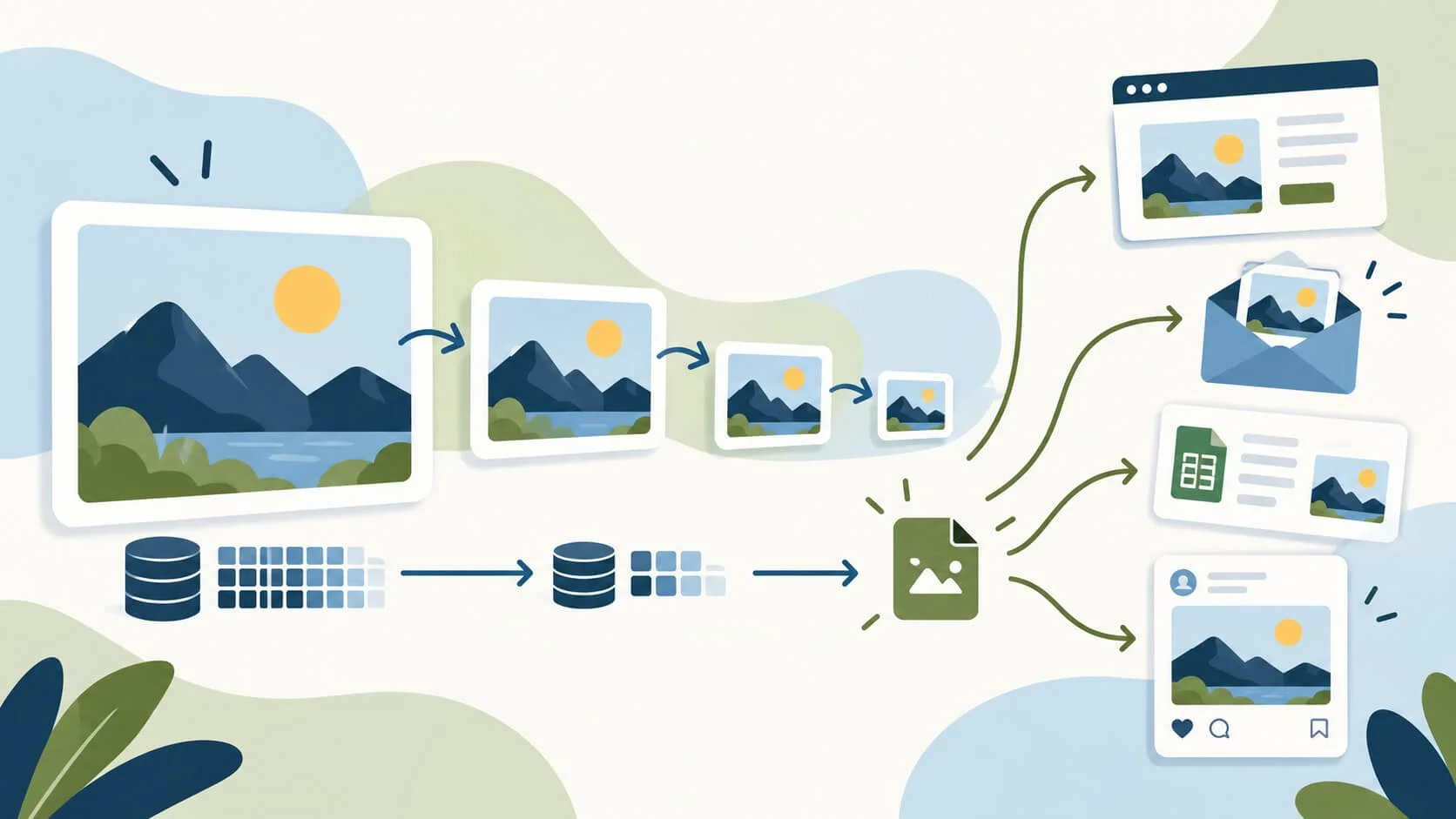
Whether you're emailing photographs to a customer, uploading product images to accounting or POS software, inserting pictures into Excel or Google Sheets, preparing social media posts or managing a website, image optimisation can make a surprisingly big difference.
Modern cameras and smartphones produce excellent photographs, but those images are often much larger than the task requires. Inserting a 6 MB photograph into an invoice or spreadsheet when a 100 KB version would look virtually identical adds unnecessary weight to the document.
Oversized images can lead to larger email attachments, slower uploads, bulkier office files and unnecessary storage usage. On websites, poorly managed images can also affect loading performance and the visitor experience.
Fortunately, optimising an image doesn't have to mean noticeably reducing its quality. By choosing appropriate dimensions, formats and compression, you can retain excellent-looking images while dramatically reducing their file sizes.
In this guide, we'll explain the essentials of image resolution and compression, recommend practical sizes for common business tasks, and walk through two useful online tools: TinyPNG by Tinify and Kraken.io.
Understanding Image Sizes and Resolution
Before optimising an image, it helps to understand what makes an image suitable for a particular task.
Digital images are measured in pixels (px). An image measuring 3000 × 2000 pixels contains six million pixels, regardless of whether the file occupies 500 KB or 5 MB. Its file size depends on several factors, including the image format, its content and how much compression has been applied.
High resolution generally describes an image containing enough pixels to display plenty of detail at its intended size. Low resolution describes an image with fewer pixels, which may be perfectly adequate for a small thumbnail but unsuitable for enlargement.
Importantly, a smaller file doesn't necessarily mean a lower-quality image. A well-optimised 300 KB photograph can look virtually identical to a much larger original when viewed at the same dimensions.
Recommended Image Dimensions for Everyday Business
Choosing the right image dimensions can significantly reduce file sizes without sacrificing visible quality. There is little benefit in inserting a 4000-pixel photograph into an invoice, spreadsheet or email where it will only be displayed as a small image.
The following recommendations provide a practical starting point for common business tasks. They are guidelines rather than strict requirements, as individual software applications and platforms may have their own recommendations or restrictions.
When resizing photographs, retain their original proportions unless a particular aspect ratio or crop is required.
| Business Use | Suggested Dimensions |
|---|---|
| Invoice & POS thumbnails | 300–600 px longest side |
| Excel & Google Sheets images | 400–800 px longest side |
| General email photographs | 1,200–1,600 px longest side |
| Customer previews & promotional images | 2,000–3,000 px longest side |
| Square social media posts | 1,080 × 1,080 px |
| Portrait social media posts | 1,080 × 1,350 px |
| Website product photography | 2,048 × 2,048 to 3,000 × 3,000 px |
| Website banners & large imagery | 2,000–2,500 px wide |
| Professional printing | Follow printer specifications |
These are practical starting points rather than strict requirements. Always check the specific software or platform's recommendations.
Understanding Aspect Ratios
An image's aspect ratio describes the relationship between its width and height. For example, a square photograph has a 1:1 ratio, while a widescreen image typically has a 16:9 ratio.
Different aspect ratios suit different purposes. Square images are commonly used for product photographs and thumbnails, portrait images work well for social media posts, and landscape images are often preferred for banners and promotional material.
When resizing an image, it's important to maintain its original proportions. Changing the width and height independently can stretch or distort the photograph, making objects appear unnaturally wide or tall.
If you need a different shape, cropping the image is generally preferable to distorting it. However, cropping removes part of the original photograph, so check that important details aren't lost.
Understanding DPI and PPI
You may come across the terms DPI (dots per inch) and PPI (pixels per inch) when working with digital images, particularly those intended for printing.
PPI describes the number of image pixels per inch at a particular physical size, while DPI refers to the density of dots produced by a printer. Although the terms are often used interchangeably, they describe different things.
For everyday digital tasks, such as emails, spreadsheets, social media and websites, pixel dimensions matter far more than DPI or PPI settings. Changing an image's resolution setting from 72 to 300 PPI without resampling does not add any detail or increase its pixel dimensions.
Professional printing is different. A photograph intended for a large printed brochure or exhibition display must contain sufficient pixels for its physical dimensions. Printers may also specify colour profiles, such as CMYK, and particular file formats.
For general business administration, concentrate on pixel dimensions, file format and compression. If an image is intended for professional printing and specialist specifications are required, it's usually best to consult the printer, designer or marketing professional handling the job.
Understanding Image Compression
Image compression reduces the amount of storage space an image requires, making it easier to upload, download, email and store. When used appropriately, compression can significantly reduce file sizes while maintaining excellent visual quality.
There are two main approaches to image compression: Lossy and Lossless. Both aim to reduce file sizes, but they achieve this in different ways.
Lossy compression removes some image information to produce a smaller file. Modern compression methods are particularly effective with photographs, where subtle changes in colour and detail are often difficult to notice at normal viewing sizes. However, excessive compression can introduce visible artefacts, blurring or blockiness.
Lossless compression reduces file size without discarding any of the image's original pixel information. It preserves the image data exactly, although the resulting file-size savings are often smaller than those achieved with Lossy compression.
Neither method determines whether an image is high or low resolution. A 3,000-pixel-wide photograph can use Lossy compression and still look excellent, while a tiny 300-pixel image can be saved using Lossless compression.
The best choice depends on the image and its intended purpose. For most everyday photographs, Lossy compression offers an excellent balance between quality and file size. Lossless compression is useful when preserving every detail is important, particularly for graphics, diagrams or images that may require further editing.
Lossy Compression
Smaller files with good visual quality
Removes some image information to achieve greater reductions in file size.
Small differences are often unnoticeable when viewing photographs normally.
Best for: Photographs, email attachments, social media and everyday digital imagery.
Lossless Compression
Preserves the original image information
Reduces file size without discarding any of the image's pixel information.
Generally produces smaller file-size savings than Lossy compression.
Best for: Diagrams, logos, graphics and images where preserving pixel data matters.
Resizing vs Compression: What's the Difference?
Although resizing and compression both help reduce image file sizes, they work in different ways.
Resizing changes an image's pixel dimensions. For example, reducing a photograph from 4000 × 3000 pixels to 1200 × 900 pixels reduces its total pixel count from 12 million to just 1.08 million — a reduction of 91%. This can significantly reduce the file size, particularly when the image is subsequently saved in an efficient format.
Compression reduces the amount of data required to store an image, without necessarily changing its pixel dimensions. Depending on the compression method, this may involve removing some image information or storing the existing information more efficiently.
For many everyday business tasks, combining resizing and compression produces the best results. A photograph intended for a small invoice thumbnail rarely needs thousands of pixels, while an image being emailed to a customer may benefit from moderate resizing followed by careful compression.
The key is to consider how the image will actually be used. Reducing an image too far can make it unsuitable for larger displays or future reuse, so it's good practice to retain the original photograph and create an optimised copy for each purpose.
Choosing the Right Image Format
The format in which an image is saved can make a significant difference to its file size, visual quality and compatibility with different applications.
For everyday business use, four common formats are worth understanding:
JPEG / JPG (Joint Photographic Experts Group)
One of the most widely supported image formats, JPEG is particularly suitable for photographs and images containing many colours and subtle gradients. It uses Lossy compression to produce relatively small files while maintaining good visual quality.
JPEG is an excellent general-purpose choice for email attachments, product photographs, office documents and images being shared with customers. However, it does not support transparent backgrounds.
PNG (Portable Network Graphics)
PNG uses Lossless compression and supports transparency, making it particularly useful for logos, diagrams, screenshots and graphics containing text or sharp edges.
PNG files can be considerably larger than JPEG photographs, so it isn't necessarily the most efficient choice for ordinary photographic images.
WebP
Developed by Google, WebP supports both Lossy and Lossless compression, along with transparent backgrounds. It can often produce smaller files than JPEG or PNG while maintaining comparable visual quality.
WebP is widely supported by modern web browsers and is particularly useful for websites and other digital applications. However, compatibility with accounting software, older office applications and some upload systems can vary.
AVIF (AV1 Image File Format)
AVIF is a newer image format designed to provide efficient compression and excellent visual quality, often producing smaller files than JPEG or WebP at comparable quality settings.
It supports features including transparency and high dynamic range (HDR). Although browser support is now widespread, not every business application or image uploader accepts AVIF files.
Which Format Should You Choose?
For general business administration, JPEG remains the safest default for photographs, while PNG is usually preferable for logos, diagrams and graphics requiring transparency.
WebP and AVIF are excellent options where the receiving software or platform supports them, particularly for online use. However, when sharing images with customers or uploading to unfamiliar systems, compatibility is often more important than achieving the smallest possible file.
Whatever format you choose, remember that image dimensions and compression settings are just as important as the file format itself.
JPG
Photographs
Excellent compatibility and efficient compression for photographic images.
Best for: Emails, product photographs and office documents.
PNG
Graphics & Logos
Lossless image format supporting transparent backgrounds.
Best for: Logos, diagrams, screenshots and graphics.
WebP
Modern Digital Images
Efficient Lossy or Lossless compression, including transparency support.
Best for: Websites and compatible digital applications.
AVIF
Advanced Compression
Excellent compression efficiency, with support for modern image features.
Best for: Modern websites and supported software.
Using TinyPNG / Tinify to Optimise Images
TinyPNG, powered by Tinify, is an easy-to-use online image compression tool that can significantly reduce image file sizes without noticeably affecting their visual quality.
It's particularly useful for everyday business tasks, such as preparing photographs for customer emails, reducing image sizes before inserting them into spreadsheets or accounting software, optimising product photographs, and preparing images for social media or websites.
The service works directly through your web browser, so there's no need to install additional software. Simply upload your images, allow TinyPNG to compress them, and download the optimised versions.
TinyPNG supports common formats including JPEG, PNG, WebP and AVIF. It also offers optional image format conversion, allowing you to change between supported formats while optimising your files.
The standard compression process is automatic, making TinyPNG an excellent choice when you want quick results without having to understand or configure complicated compression settings.
A free version is available for occasional use, while paid annual subscriptions provide higher file-size limits, greater processing capacity and additional features.
Unlike Kraken.io, which we'll cover in the next section, TinyPNG's standard browser uploader concentrates on compression and format conversion rather than providing manual controls for resizing images to specific pixel dimensions.
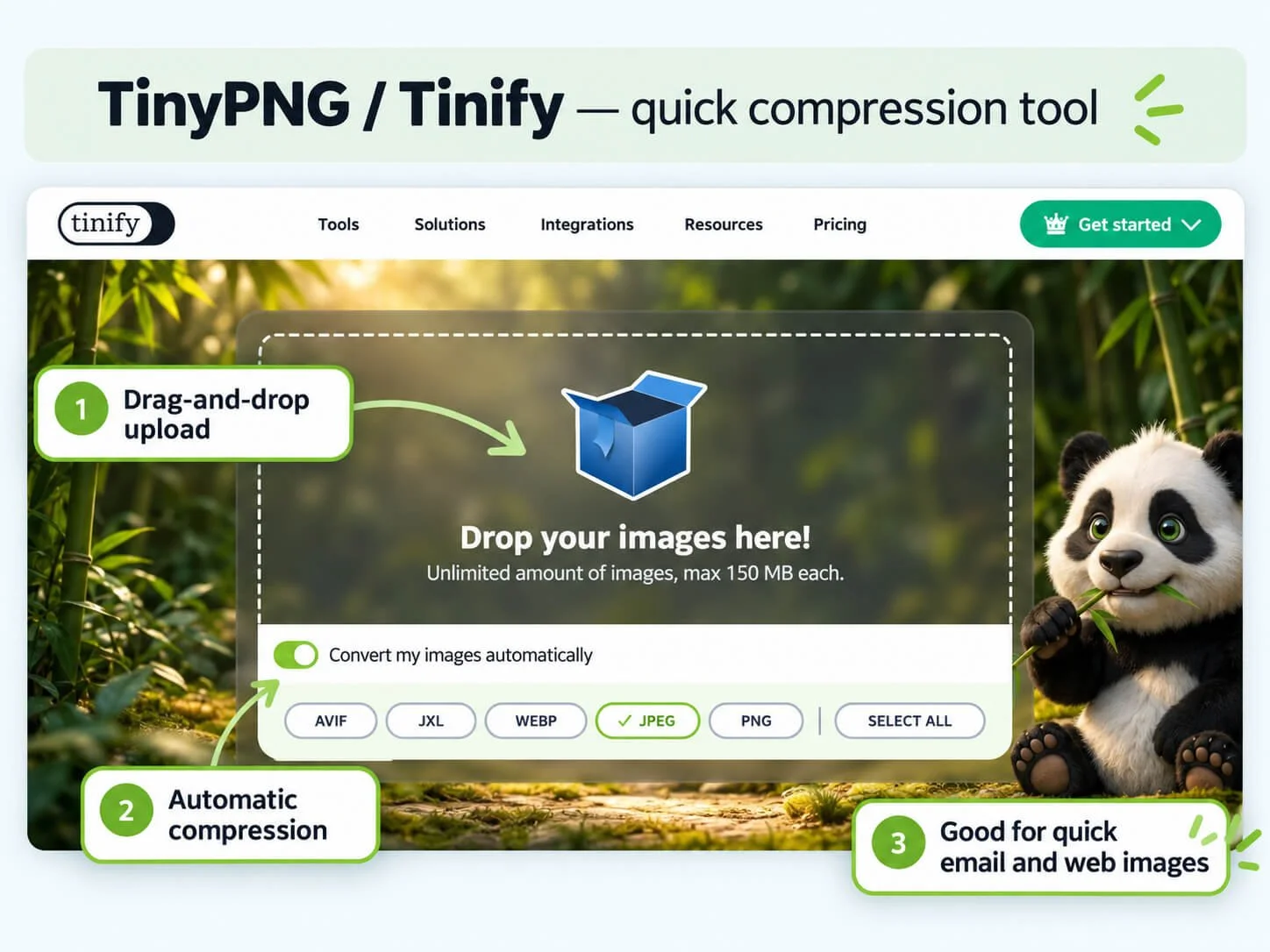
Tinify Image Optimisation interface. Note that the free version offers a file limitation of 5MB each and max uploads 20 per go.
-
Open TinyPNG
Visit tinypng.com in your browser. You can use the free uploader without creating an account, subject to its usage limits.
-
Choose Your Output Format
For straightforward compression, leave automatic conversion switched off to retain the original format. Alternatively, enable conversion and select a supported format, such as JPEG, PNG or WebP.
-
Upload Your Images
Drag and drop your images into the upload area, or click the area to browse and select files from your computer. You can process multiple images together, subject to your plan's limits.
-
Let TinyPNG Optimise Them
The service automatically processes your images to reduce their file sizes. Once completed, you can review the results and the savings achieved.
-
Download the Optimised Images
Download your finished images using the available download options. Save them separately from your originals so you can reuse the full-quality files when needed.
Useful tip: TinyPNG is particularly convenient when your images already have suitable pixel dimensions and you simply want smaller files. If you also need to resize a photograph to a specific width or height, Kraken.io provides those controls in its web interface.
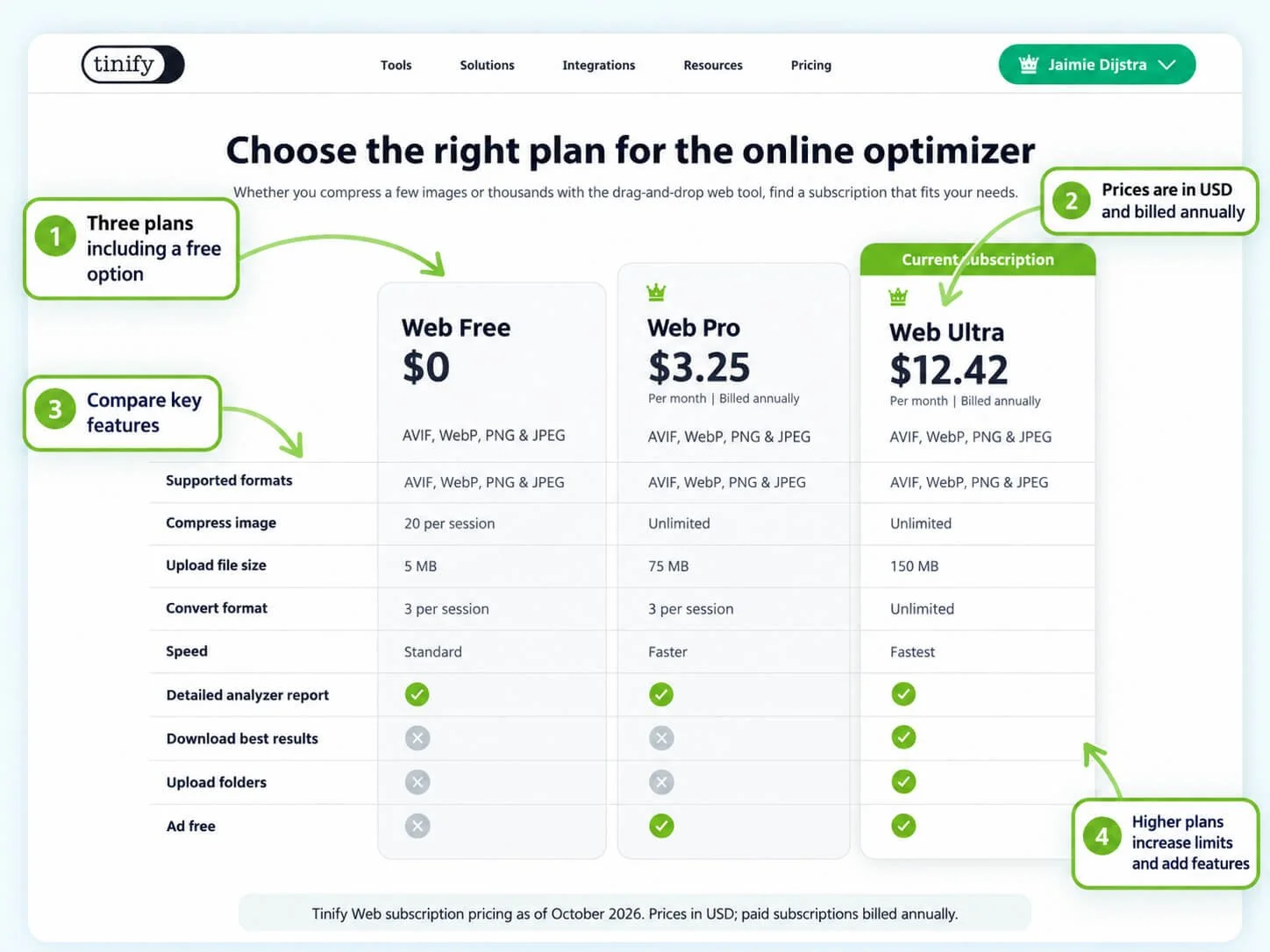
TinyPNG Pricing and Free Usage
TinyPNG offers a free web-based image optimiser, making it an accessible option for individuals and businesses that only occasionally need to compress images.
The Web Free plan allows up to 20 images per session, with a maximum upload size of 5 MB per image. This is often sufficient for everyday tasks such as reducing photograph sizes for emails, office documents or occasional product uploads.
For businesses processing larger images or more substantial quantities, Tinify offers two paid subscription levels:
Web Pro: Unlimited image compression through the web uploader, with a maximum file size of 75 MB per image.
Web Ultra: Unlimited image compression, supporting files up to 150 MB each, along with additional features including folder uploads and unlimited format conversions.
Both paid plans are billed annually, although prices are displayed as monthly equivalents. The screenshot above shows the available plans and pricing as of October 2026.
For most occasional users, the free plan is a sensible starting point. A paid subscription becomes more worthwhile when image processing is a frequent part of your work, particularly if you regularly handle larger files or batches of photographs.
You can review current subscriptions and limits on the Tinify website.
Using Kraken.io to Resize and Optimise Images
Kraken.io is an online image optimisation service offering greater control over how images are processed. Like TinyPNG, it can significantly reduce image file sizes, but it also provides additional options for resizing, compression and format conversion.
One of Kraken.io's most useful features is its ability to resize images directly within the web interface. Rather than simply compressing a large photograph, you can specify a maximum width or height and allow Kraken to scale the image proportionally.
This makes it particularly useful for everyday business tasks where specific image dimensions are required, such as preparing small product thumbnails for accounting or POS software, resizing photographs for customer emails, or creating consistently sized images for office documents.
Kraken.io also provides three optimisation modes:
Lossy: Prioritises smaller file sizes while maintaining good visual quality, making it suitable for most everyday digital images.
Lossless: Preserves the original pixel information while reducing file size, making it useful when image fidelity is particularly important.
Expert: Offers more detailed optimisation controls for users who need to fine-tune their results.
Another useful feature is the ability to import images directly from Dropbox, Google Drive or Box, avoiding the need to download files to your computer before uploading them for optimisation.
Kraken.io supports individual image uploads and ZIP archives containing multiple images. Once processing is complete, optimised images can be downloaded individually or together in a ZIP file.
A free account provides an initial allowance for testing the service, while paid subscriptions offer ongoing monthly processing quotas. Unlike Tinify's annual web subscriptions, Kraken.io offers both monthly billing and discounted annual plans.
For businesses that regularly need to resize as well as compress images, Kraken.io provides a flexible workflow without requiring specialist image-editing software.
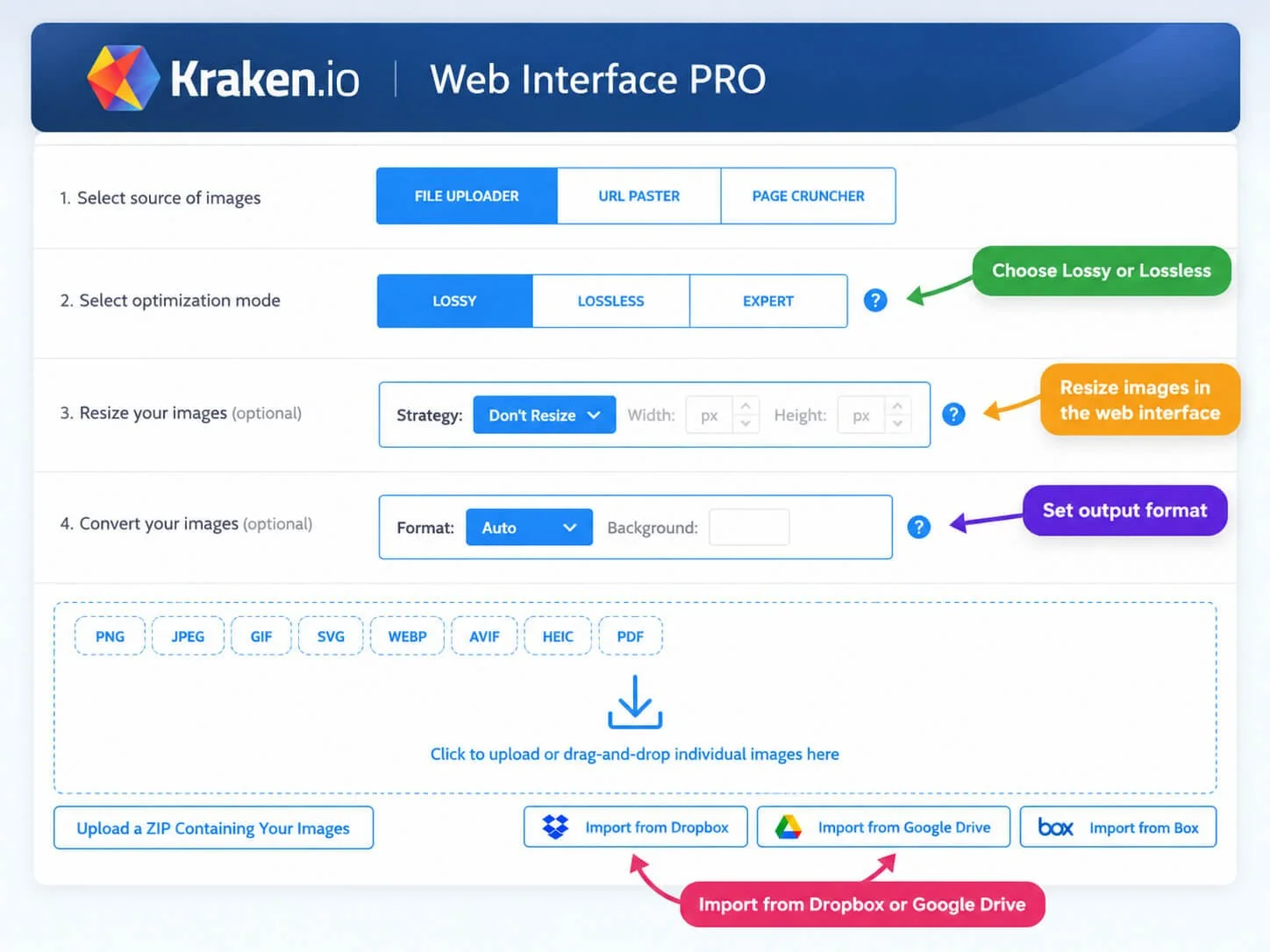
Kraken.io Web Interface PRO showing image compression, resizing, format conversion and Dropbox and Google Drive import options.
-
Log In and Open Web Interface PRO
Visit kraken.io and sign in to your account. The Account Overview displays your current usage and optimisation savings. Select Web Interface PRO from the navigation menu.
-
Select Your Image Source
Leave File Uploader selected for images stored on your computer. You can also import images directly from Dropbox, Google Drive or Box using the options beneath the upload area.
-
Choose Your Optimisation Mode
Select Lossy for smaller files suitable for most emails, thumbnails and everyday digital images. Choose Lossless when preserving the original pixel information is particularly important. Expert mode provides additional controls for experienced users.
-
Resize Your Images (Optional)
Use the Strategy dropdown to select a resizing method. For landscape photographs, you can specify a target width; for portrait photographs, a target height. Kraken adjusts the other dimension proportionally when using these strategies, avoiding distortion. Leave Don't Resize selected to retain the existing pixel dimensions.
-
Choose an Output Format (Optional)
Leave Format: Auto selected unless you need a particular file format. For general compatibility, JPEG is usually a good choice for photographs, while PNG is useful for graphics or images requiring transparency.
-
Upload Your Images
Drag and drop files into the dotted upload area, or click inside it to browse your computer. You can also upload a ZIP archive containing multiple images. Kraken processes the uploaded images using your selected settings.
-
Download Your Optimised Images
Once processing is complete, download individual images or download the results together as a ZIP archive. Check the finished dimensions and visual quality before using them, and keep your original files safely stored.
Practical tip: For general email photographs, try resizing to approximately 1,200–1,600 pixels on the longest side with Lossy optimisation. For high-quality client photographs, consider retaining 2,000–3,000 pixels and using Lossless optimisation where appropriate. Always check the finished image at its intended viewing size.
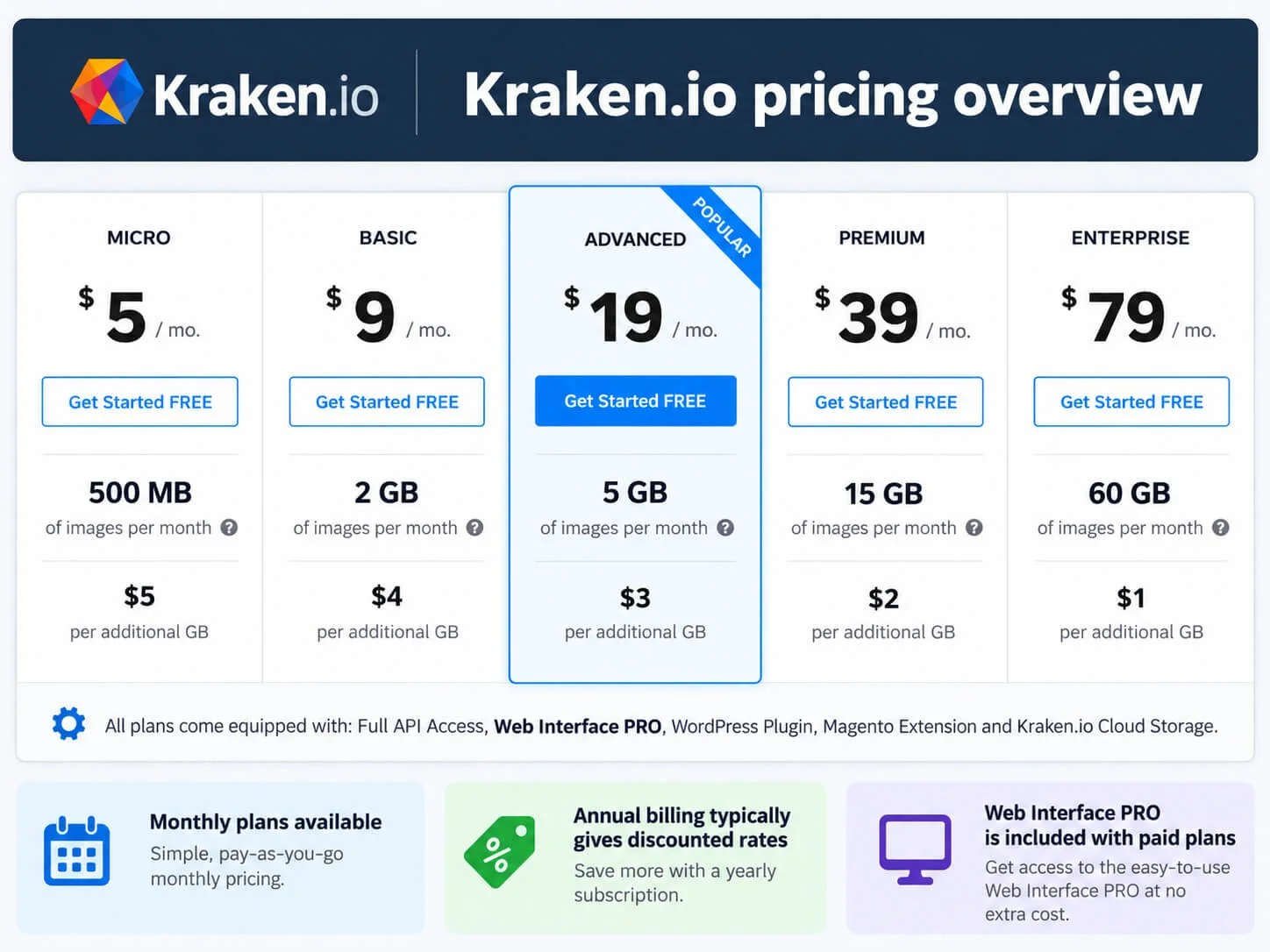
Kraken.io image optimisation subscription plans — pricing as of October 2026. Prices shown in USD for monthly billing; discounted annual subscriptions are also available.
Kraken.io Pricing and Subscriptions
Kraken.io offers a range of subscription plans to suit different image processing requirements, from occasional business use to organisations handling large volumes of photographs.
New accounts begin with a free 100 MB testing allowance, providing an opportunity to explore the service and try its optimisation features before committing to a paid subscription.
Paid plans are based on the total volume of image data processed each month, rather than simply the number of photographs uploaded.
The entry-level Micro plan starts at $5 per month, providing a 500 MB monthly processing allowance. Higher subscription levels offer progressively larger quotas, making them suitable for businesses regularly preparing product photographs, marketing materials or extensive image collections.
Kraken.io offers both monthly subscriptions and discounted annual billing, providing flexibility depending on how frequently the service is required. Additional processing capacity is available at published rates if a monthly allowance is exceeded.
All paid plans include access to Web Interface PRO, which provides the resizing, optimisation and format conversion tools covered in this guide.
For occasional use, the free testing allowance is a useful introduction. For regular business administration, the Micro plan may be sufficient, particularly when processing modest quantities of images.
You can review the latest subscription options and pricing on the Kraken.io website.
Image Optimisation for Websites
Images are an essential part of most websites, whether they're product photographs, promotional banners, portfolio galleries or illustrations accompanying articles. However, image-heavy pages can also affect website performance, particularly when visitors are using mobile devices or slower internet connections.
Fortunately, modern website platforms such as Shopify and Squarespace include built-in image optimisation features. These systems can automatically generate smaller versions of uploaded images, allowing different devices and screen sizes to receive appropriately sized photographs.
Joomla can also support responsive images and automated optimisation, although the available functionality depends more heavily on the website's template, extensions and configuration.
This means website owners don't necessarily need to create separate image files for every screen size. In many cases, uploading a good-quality original image allows the platform to manage how that image is displayed and delivered.
However, this doesn't mean image preparation is irrelevant. Uploading unnecessarily enormous photographs can increase upload times and storage requirements, while uploading images that are too small can result in blurred or pixelated photographs when displayed prominently.
For general website photography, images measuring approximately 2,000–3,000 pixels on their longest side provide a useful starting point. High-quality square product images may be prepared at up to 3,000 × 3,000 pixels, while wide banners and other specialised layouts may require different proportions.
It's also important to distinguish between preparing an image for upload and optimising how it is delivered to visitors. Platforms with built-in image processing often handle the latter automatically. Applying aggressive compression before uploading may provide little additional benefit and can sometimes reduce the final image quality.
The best approach is to start with suitable dimensions, preserve good visual quality and understand what your particular website platform handles automatically.
Shopify
Automatic optimisationSuggested image size
2,048 × 2,048 px is a good standard for square product photographs. Larger originals may also be suitable.
What Shopify handles
Automatically generates image sizes and uses its CDN to deliver resized and compressed images in suitable formats for visitors.
Best practice: Upload high-quality images with consistent aspect ratios. Shopify recommends avoiding manual pre-compression.
Squarespace
Automatic resizingSuggested image size
Approximately 2,500 px wide for most website photography. Use suitable aspect ratios for banners, galleries and other layouts.
What Squarespace handles
Automatically creates multiple image widths and selects appropriate versions for different screen sizes.
Best practice: Prepare images at sensible dimensions and avoid unnecessarily large uploads.
Joomla
Configuration dependentSuggested image size
Around 2,000–3,000 px on the longest side can be a useful starting point, depending on the website design.
What Joomla handles
Image processing capabilities are available, but automatic optimisation and responsive delivery depend on the template, extensions and configuration.
Best practice: Check how your particular Joomla website processes images. Pre-sizing and compression may be especially beneficial.
Practical Tips for Preparing Website Images
The most effective approach to website image optimisation is to prepare images appropriately for their intended use, while allowing your website platform to handle the optimisation features it already provides.
1. Start with good-quality originals
Use clear, properly focused photographs with sufficient resolution for their intended purpose. Compression can reduce file sizes, but it cannot recover detail from a photograph that was originally too small or poor quality.
2. Choose sensible image dimensions
For general website photography, approximately 2,000–3,000 pixels on the longest side is a useful starting point. Square product photographs may be prepared at up to 3,000 × 3,000 pixels, depending on the platform and how prominently the images will be displayed.
Avoid uploading extremely large camera originals when substantially smaller dimensions would serve the same purpose.
3. Maintain consistent proportions
For product catalogues, consistent aspect ratios help create a professional appearance. For example, using square images throughout a product collection can produce more uniform product grids and listings.
Different layouts, such as full-width banners or portrait galleries, may require different proportions.
4. Understand your platform's optimisation features
Shopify and Squarespace automatically generate appropriately sized image versions for different display requirements. In these systems, supplying a suitable, high-quality original is generally more important than attempting to achieve the smallest possible upload file.
Joomla websites vary depending on their configuration. Where automatic optimisation isn't available, preparing resized and compressed images before uploading can be particularly beneficial.
5. Avoid unnecessary repeated compression
Repeatedly saving a JPEG using Lossy compression can gradually reduce its quality. Similarly, compressing an image aggressively before uploading it to a platform that applies further compression may produce unnecessary quality loss.
Keep your original photographs and create new optimised versions from those originals when required.
6. Check the finished website
An image that looks excellent on a desktop computer may appear differently on a mobile phone. Check important photographs at different screen sizes, particularly product images, banners and promotional graphics.
For website performance, tools such as Google PageSpeed Insights can help identify images that are unnecessarily large, inefficiently delivered or affecting loading performance.
Ultimately, the goal isn't simply to produce the smallest image file possible. It's to deliver the right image, at the right dimensions and quality, for the person viewing it.
Final Thoughts: Choosing the Right Image Optimisation Tool
Image optimisation doesn't need to be complicated or time-consuming. Whether you're preparing product photographs, emailing images to customers, working with spreadsheets or uploading content to a website, a little preparation can make your files easier to manage, share and store.
Both TinyPNG / Tinify and Kraken.io are useful services, but they offer slightly different approaches.
Choose TinyPNG / Tinify when you want a quick, straightforward way to compress images without adjusting lots of settings. It's particularly convenient when your photographs already have suitable dimensions and you simply want to reduce their file sizes.
Choose Kraken.io when you need greater control over the finished images. Its resizing options, selectable compression modes and additional upload sources make it particularly useful when regularly preparing photographs for different business purposes.
Neither service is necessarily better for everyone. Occasional users may find TinyPNG's free uploader perfectly adequate, while businesses handling larger quantities of imagery may benefit from the flexibility of a paid subscription.
Whichever tool you choose, remember three simple principles: start with a good-quality original, size the image for its intended purpose and apply appropriate compression.
There's rarely any benefit in using an enormous photograph where a much smaller version would look just as good. Equally, reducing an image too aggressively can compromise its quality and limit how it can be reused.
Good image optimisation is about finding the right balance between quality, file size and practicality. Get that balance right, and you'll have cleaner documents, more manageable attachments, efficient business workflows and better-prepared digital content.
